
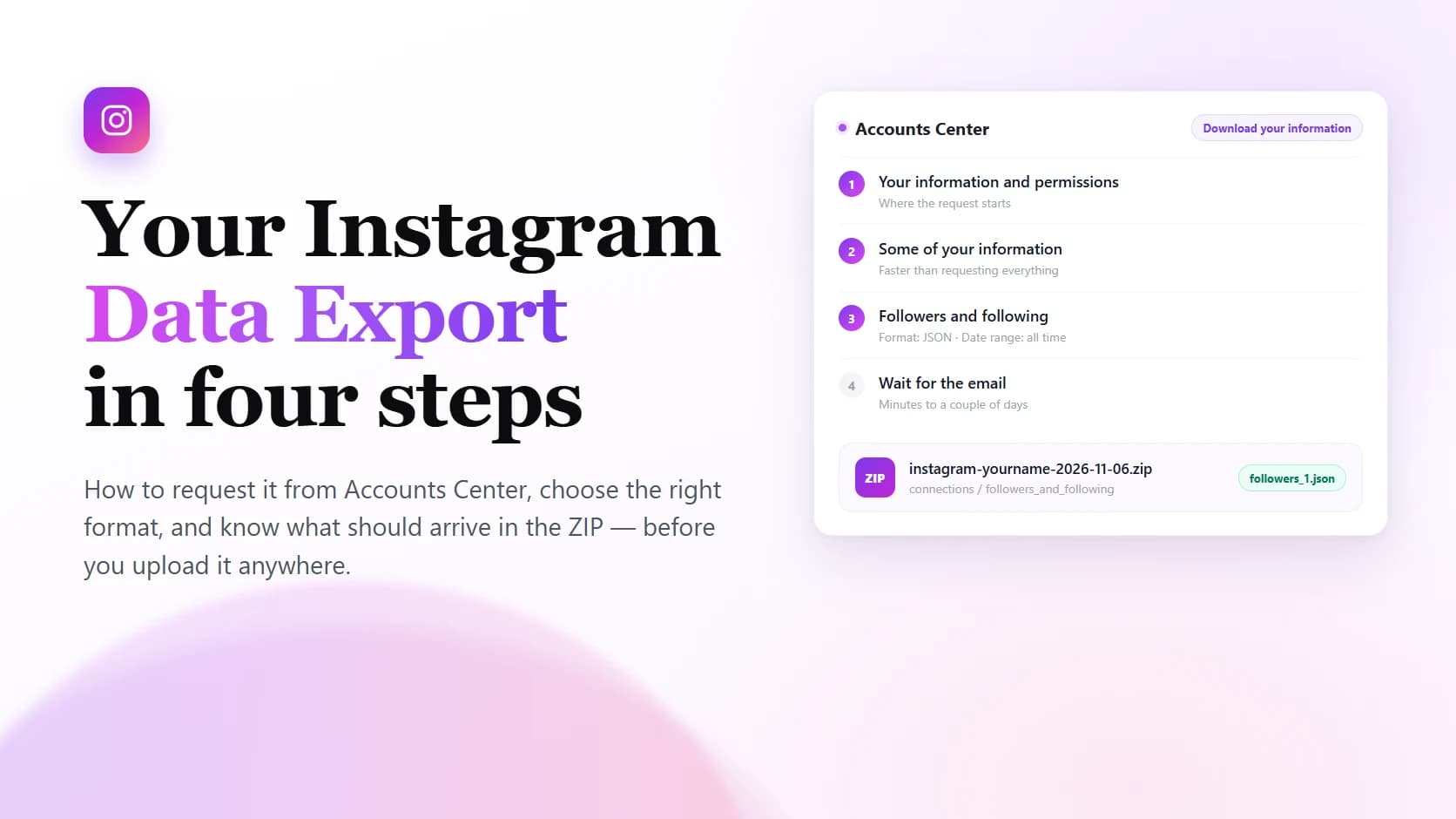
Your Instagram data export is the archive Instagram builds for you on request: a ZIP file containing your activity, and — if you select it — the two relationship lists this whole site is built around. This page covers getting the file and nothing else. What is inside it, field by field, is a separate question answered in the guides linked below.
Quick answer
Open Accounts Center from your Instagram settings, go to Your information and permissions, then Download your information. Choose Some of your information, tick Followers and following, pick JSON, and submit.
Instagram builds the archive in the background and emails you a link when it is ready. Depending on what you asked for, that takes anywhere from a few minutes to a couple of days. Save the ZIP when the link arrives, because the link itself expires.
That is the entire task. Everything below is the detail that decides whether the file you get is useful: which categories to tick, which format to pick, and what the folder should look like when it is right.
Where the request lives now
Most guides still describe a path that no longer exists. The download request moved into Accounts Center, the shared settings area for Meta accounts, which is why searching the Instagram settings list for “download” often turns up nothing.
The path, from the app:
- Open your profile and tap the menu.
- Tap Settings and activity, then Accounts Center.
- Tap Your information and permissions.
- Tap Download your information, then Request a download.
On the web the same screens live under More in the left navigation, then Settings. The labels are the same; the layout is wider. If your account is part of a shared Accounts Center, the request is still per-account — check which profile is selected at the top before you submit, because it is easy to export the wrong one.
Instagram may ask you to re-enter your password before it accepts the request. That is Instagram confirming it is you, inside its own site, and it is a different thing from a third-party tool asking for the same credentials afterwards. One is the account owner proving identity to the platform; the other is handing your login to someone else. The rest of this page only involves the first kind.
Choosing what to include
Instagram offers two starting points: All of your information and Some of your information. For a relationship cleanup, the second one is the right choice, and it is not close. Requesting everything means waiting for photos and videos to be packaged, which is what turns a two-minute job into a two-day one.
Choosing Some of your information opens a category tree. The one you want is Connections, and inside it, Followers and following. Tick that and nothing else if the lists are all you need.
Two things worth knowing before you submit. First, the category is a single checkbox covering both lists — there is no way to request followers without following. Second, if you also want your own handle in the archive, that comes from Personal information; without it the ZIP contains the relationship lists but never states which account they belong to. That is not a problem for a single export, and it does matter once you start comparing two.
The date range does not give you older followers
The request form asks for a date range — the last week, month, year, or all time. It is easy to read that as “export my followers from last year”, and it does not mean that.
The range filters dated content: posts, stories, comments, messages, and similar activity that carries a timestamp. The followers and following lists are not a log of activity. They are exported as they stand at the moment the archive is built, so every date range returns the same two lists.
This matters because it closes off a shortcut people reasonably expect. You cannot request a past snapshot of your followers, and no setting produces one. The only way to hold an older state is to have downloaded an archive when it was current and kept it — which is exactly how comparing two exports to find unfollowers works.
For a first export, choose All time. It costs nothing for the relationship lists and saves a second request later if you decide you want older posts too.
JSON or HTML
Pick JSON. It keeps usernames and follow timestamps as structured data, which is what any comparison depends on. HTML produces pages you can read in a browser but that are not a documented format, and the timestamps are harder to recover from them.
The one case for HTML is wanting to open the archive and read it like a document without any tool. If that is your goal, the trade-offs are laid out in the JSON versus HTML comparison, including what each format does and does not preserve. For everything else on this page, the answer is JSON.
How long it takes, and what to do while you wait
A request limited to Followers and following is small — usernames and timestamps, nothing else — so it usually completes within minutes. Requests that include media take longer, and the honest answer for those is hours rather than minutes, occasionally more than a day.
Instagram emails you when the archive is ready. You can also check progress without waiting for the email: the same Download your information screen lists your Download requests with their status. That list is the reliable place to look if the email never shows up, since it is not unusual for it to land in a spam folder or a promotions tab.
When it does arrive, download the ZIP to your device and keep it compressed. The link is time-limited — a few days, not indefinitely — so the archive you did not save is an archive you will request again. If the link has already expired, or the email never came, the troubleshooting guide walks through the five things that actually go wrong.
What arrives in the ZIP
The archive is a normal ZIP. Do not extract it unless you want to — every tool on this site reads it as it is, and extracting it is a common cause of “the upload did not work”.
Inside, both lists sit in the same folder — connections, then followers_and_following:
followers_1.json— accounts that follow you.following.json— accounts you follow.
Large accounts get more than one followers file: followers_2.json, followers_3.json, and so on. Instagram splits the list rather than writing one enormous file, and a complete read has to include every numbered file — missing one produces a list that looks plausible and is wrong. Why the split exists, and what each field means, is covered in the guide to the files themselves.
If you selected other categories, expect other top-level folders alongside connections. Their presence is not an error. What matters is that the two relationship files are there, and that following.json is present — an archive with followers but no following is the most common incomplete result, and there are a few known reasons for it.
Instagram names the file after the account and the date it was built, so you end up with something like instagram-yourname-2026-11-06.zip. Keep that stamp. If you rename the file, keep the date in the new name too. The moment you hold two archives, that stamp is the only thing telling them apart, and a folder of instagram-export.zip next to instagram-export (1).zip is how people end up comparing a file with itself and concluding that nobody unfollowed them.
Before you upload it anywhere
It is worth being concrete about what this file is. It lists every account that follows you and every account you follow, with timestamps. That is a map of your social graph — not passwords, not messages, but not nothing either.
So the question is not whether the file is sensitive, but where it goes. A tool that uploads your ZIP to a server has a copy of your social graph, and you are trusting its retention policy. A tool that reads the file in the browser tab never sends it anywhere; you can watch the network panel while it runs and see no upload. Instagram Cleaner works the second way, and what that means in practice is documented rather than asserted.
One related rule is worth repeating because it is the most common way people lose an account: no export-based task needs your Instagram password. The file is already yours. If a site asks you to log in to read it, that request is the risk, not the upload.
One habit from the other direction: keep the archive after you have read it. It is the only record of who followed you on that date, and no future request can recreate it — Instagram will only ever hand you the present. Deleting the ZIP once a cleanup is done removes the baseline that the next comparison depends on, and that baseline is the one thing you cannot buy back later.
What to do next
With the ZIP in hand, the useful next step depends on the question you started with. If it is who does not follow you back, the answer is a single subtraction between the two lists. If it is who left since last time, you need a second export and a comparison between the two.
Both run in the browser on the file you just downloaded: open Instagram Cleaner and add your ZIP. No account, no password, and nothing uploaded. If you would rather read the walkthrough first, the upload guide covers what the tool accepts and what a successful result looks like.
Frequently asked questions
How do I download my Instagram data?
Accounts Center → Your information and permissions → Download your information → Request a download. Choose Some of your information, tick Followers and following, pick JSON, submit.
How long does it take?
Minutes for a relationships-only request, hours to a day or more if you include media. The Download requests screen shows the real status.
Does the date range change the follower list?
No. The range filters dated content. The relationship lists are always exported as they stand right now.
Can I get an export of someone else?
No. The archive is generated for the account that requested it and delivered to that account.
The short version
- The request lives in Accounts Center, not in the Instagram settings list.
- Choose Some of your information, then Followers and following, then JSON.
- Pick All time — the date range does not change the relationship lists.
- Keep the ZIP compressed, and save it before the download link expires.
- Expect
followers_1.json(and possibly more) plusfollowing.jsonin thefollowers_and_followingfolder. - The file is a map of your social graph, so read it in the browser rather than uploading it.
If the archive is already on your device, you are past the hard part. Add it to the tool and see what the two lists say about each other.