
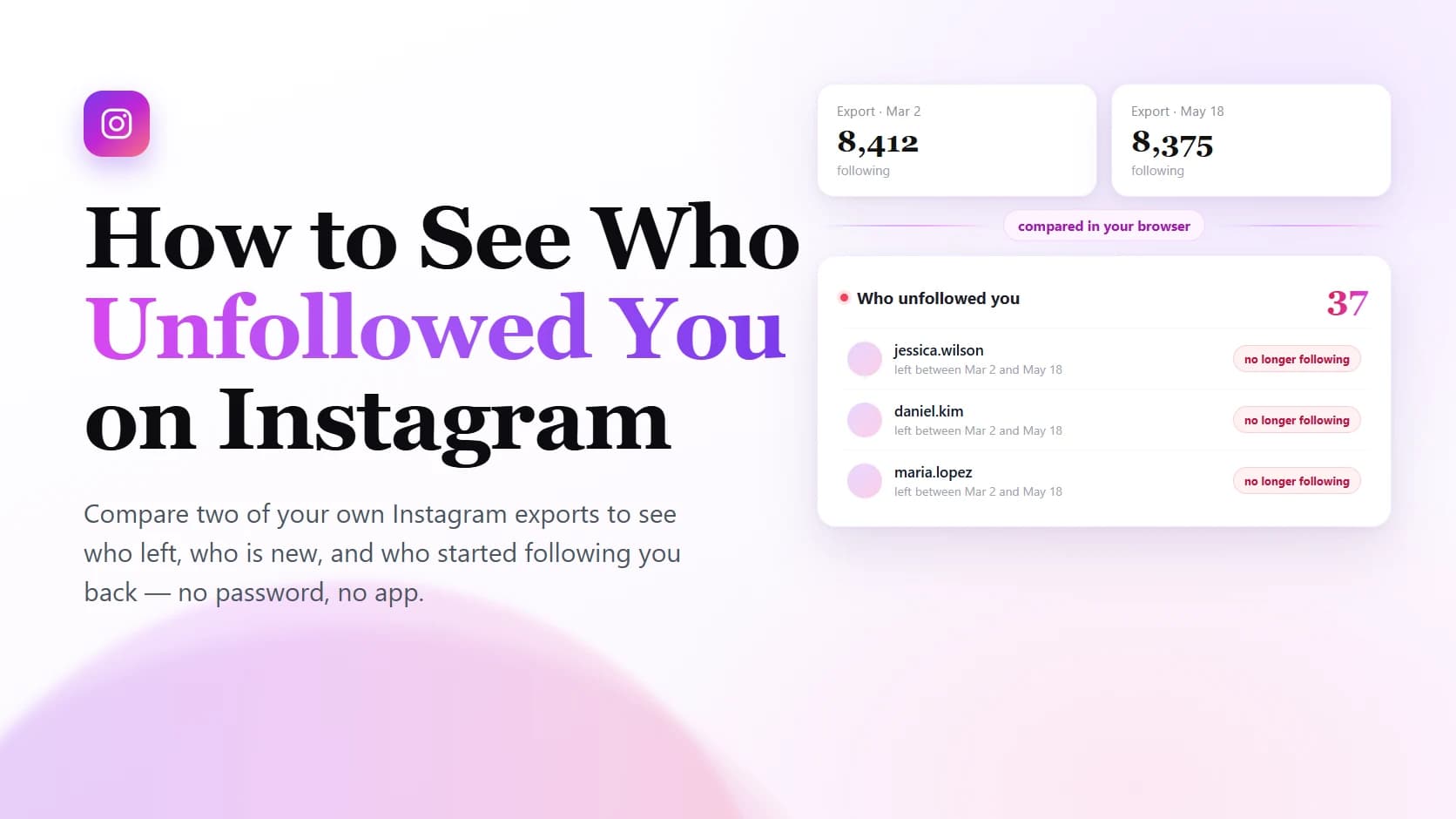
Instagram has no screen that lists the people who stopped following you, and your data export does not contain an unfollower history. There is still a way to answer the question, but it depends on a step most guides skip: you need two exports, not one. This page covers how the comparison works, how precise it can get, and why the three things that remove a follower look identical in your data.
Quick answer
You cannot see who unfollowed you from a single export. One export is a photograph of your followers at the moment Instagram built it — it tells you who follows you now, and says nothing about who used to.
What does work is the difference between two photographs. Download an export today, download another one in a few weeks, and compare the followers file in each. Any account that appears in the older file but not in the newer one stopped following you somewhere between the two dates.
That is the whole method. Everything below is about doing it accurately, and about the limits you should know before trusting the list.
Why Instagram does not show you this
Instagram does not notify you when someone unfollows, and there is no setting that turns such a notification on. The only signal is indirect: your follower count on your profile drops. It does not tell you whose departure caused it, and it does not keep a log.
The export follows the same logic. When you request your information, Instagram assembles the current state of your relationships — who follows you, who you follow — and hands you that snapshot. It is not a ledger of changes. Nothing in the archive records that an account was once in your followers list and later was not.
This is worth stating plainly because a lot of pages blur it. If a tool claims to read your unfollower history out of a single export, it is describing data that is not in the file. The comparison method below works for a different reason: it does not need history, because you supply the earlier state yourself.
The comparison, in plain terms
Think of each export as a set of usernames. The comparison is set subtraction, nothing more:
- Unfollowers — in the older
followersset, missing from the newer one. - New followers — in the newer set, missing from the older one.
- Still following you — in both sets.
The same subtraction run against your following file answers the mirror question: who you stopped following, and who you started following, in the same window. Running both is useful because a drop in your follower count is often explained by the second list rather than the first.
If you want the mechanics of the files themselves — why followers arrive split across numbered files, what each field means — that is covered in where your followers export actually lives. The rest of this page assumes you have two archives and want the difference between them.
Step by step
1. Make sure you have an older export
If you already downloaded your Instagram data at some point and kept the ZIP, you are ready. If not, this is where the method starts: request one now, and accept that the first comparison can only happen later. There is no way to reconstruct a past snapshot after the fact, which is the one real cost of this approach.
2. Request a fresh export
In Accounts Center, open Your information and permissions → Download your information, choose Some of your information, and select only Followers and following. Choosing JSON keeps the usernames and timestamps in a predictable structure.
The full request steps, including how long it takes and what to do when the email never arrives, are in the upload walkthrough. Here the only thing that matters is that both archives cover the same category.
3. Keep both ZIPs intact
Do not extract the archives and do not delete the older one after reading it. The earlier file is the whole reason the comparison is possible, and it cannot be regenerated — Instagram will only ever give you the present.
4. Compare the two, oldest first
Order matters. The older archive is the baseline and the newer one is the current state. Swapping them reverses the direction of every result: accounts that left will be reported as new followers, and the list will look plausible while being exactly wrong.
5. Read the three lists, not just one
A single number — “37 people unfollowed you” — is the least useful part of the result. The three lists together tell you whether your audience is shrinking because people left, or because you removed them, or because a handful of accounts were deactivated or blocked.
Let the browser do the subtraction
Comparing two lists by hand works at a few hundred accounts and stops working after that, especially once Instagram splits your followers across several numbered files in each archive.
Instagram Cleaner reads both ZIPs locally in your browser and produces the comparison directly: who unfollowed you, who is new, who started following you back. Neither file is uploaded to a server, no Instagram password is requested, and nothing on your account is changed. You can also save a report and compare a later export against it without keeping the original ZIP around.
What the comparison can and cannot tell you
Being precise about this is the difference between a useful answer and a misleading one.
It can tell you which accounts were following you at the earlier date and were not at the later one. That is a complete, verifiable answer for the window you measured.
It cannot tell you the exact day of the unfollow, why it happened, or anything that occurred before your oldest export. If your two archives are six weeks apart, every result is accurate to a six-week window and no finer.
It also cannot tell you whether a departure was voluntary. That is the subject of the next section, and it is the single most common source of wrong conclusions in this whole workflow.
Unfollowed, blocked, or deactivated?
Three different events produce the same result in your data: an account that was in your followers list is no longer there. Your export records the outcome, never the cause.
- They unfollowed you. Their account is still visible to you, they simply stopped following.
- They blocked you. Their profile is no longer reachable from your account, and their previous follow disappears with it.
- They deactivated or deleted their account. The username may still resolve for a while, but the profile is empty or gone.
To narrow it down, search the username in the app. If the profile opens normally and shows a Follow button, it was an unfollow. If the name returns nothing at all, a block or a deactivated account is more likely than an unfollow — though from your side those two are also indistinguishable.
This is why a list headed “people who unfollowed you” is always slightly overstated. It is a list of accounts that left your followers, whatever the reason.
What unfollower tracker apps actually do
Apps that promise to tell you about unfollows as they happen have to notice the change when it occurs. That requires either ongoing access to your account or repeated automated requests to Instagram on your behalf. Both are why these apps ask you to connect something.
The trade is real and worth naming: a tracker gives you a narrower time window and no manual work, in exchange for persistent access to your account. The two-export method gives you neither access nor automatic alerts, in exchange for a window you control by choosing when to export.
Neither approach can see anything before it started. A tracker installed today knows nothing about last year, and an export pair only reaches back to your older file. Any product claiming otherwise is guessing.
If you are weighing tools rather than methods, the comparison of unfollow tools sorts them by what each one needs from you before it will answer anything. And if the question is whether handing over a password is a fair price, what a cleaner does with your data covers that directly.
Two habits that make the comparison worth keeping
Export on a rhythm, not on suspicion. A monthly export gives you a four-week window and a baseline that is always recent. Exporting only when you feel something is wrong means your baseline is whatever you last happened to download, which may be a year old.
Keep the report, not just the ZIP. The comparison you ran is itself a record. Saving it means the next comparison can start from the last report instead of from an archive you have to find again.
Frequently asked questions
The questions below are the ones this method tends to raise. The full set, including edge cases around partial exports and private accounts, is in the structured data on this page.
Can you see who unfollowed you on Instagram?
Not from one export. Compare an older export with a newer one and the difference is the answer for that window.
Does Instagram notify you when someone unfollows you?
No. There is no unfollow notification and no setting to enable one.
Did they unfollow me or block me?
Your export cannot distinguish the two. Search the username: a profile that still opens but no longer follows you is an unfollow.
How far back can I see?
Only to your oldest saved export. Nothing before that is recoverable.
The short version
- One export cannot show unfollowers. Two can, by subtraction.
- The answer is a window between two dates, not a specific day.
- Unfollow, block and deactivation all look identical in your data.
- No password is needed, because both files are already yours.
- The only thing you must do in advance is keep an older export.
Start with the export you already have. If you have two, compare them in the browser and read the difference. If you have one, keep it — it becomes the baseline that makes the next comparison possible.